Registration Process
Follow the steps below to register and access tax certificates through the City of Clarence-Rockland's online services portal.
Visit the City of Clarence-Rockland – Online Services portal.
Click Link and Register Your Account to begin the registration process.
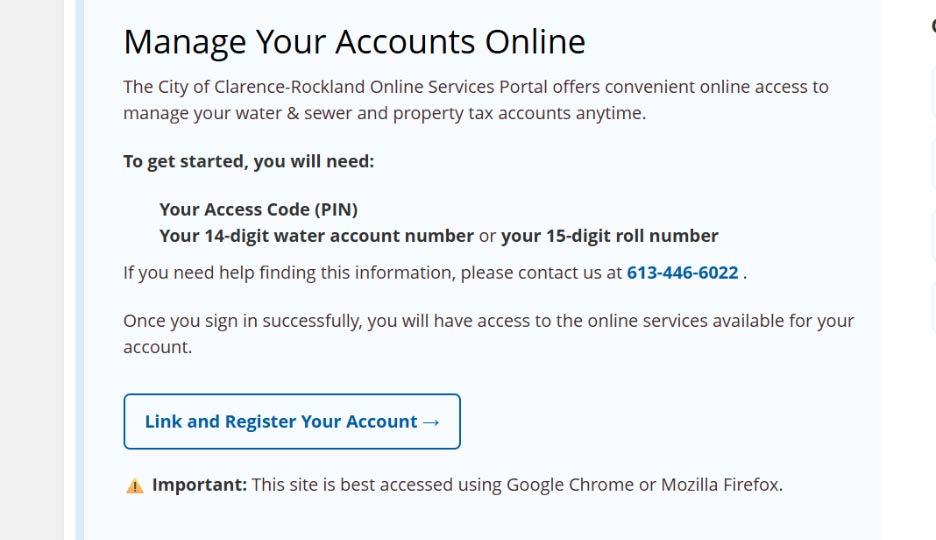
Click Show Me How to begin.
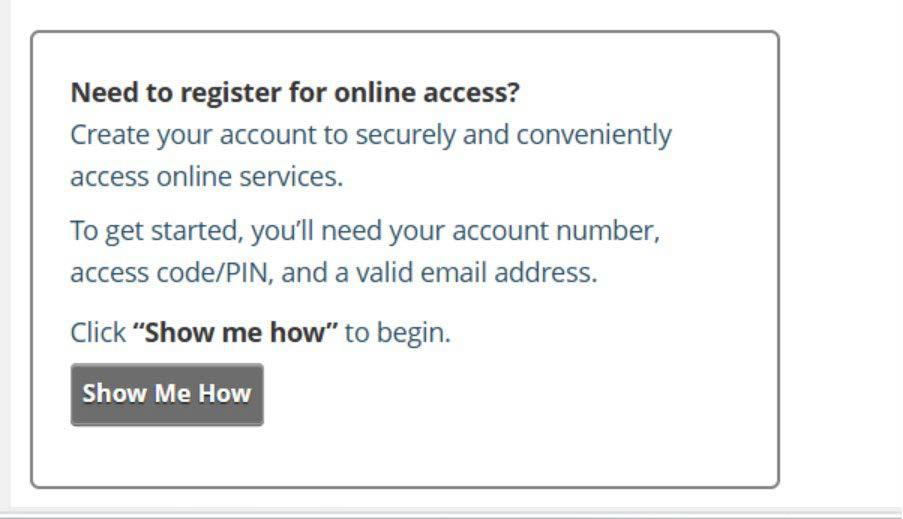
Important: You can only create one Accounts Receivable (AR) account to access the Tax Certificates module. Do not add other online services, such as Utility Billing or Property Tax, under the same account.
Select AR – Accounts Receivable from the account type dropdown menu.

Enter your account number and 5-digit PIN, then click Save.
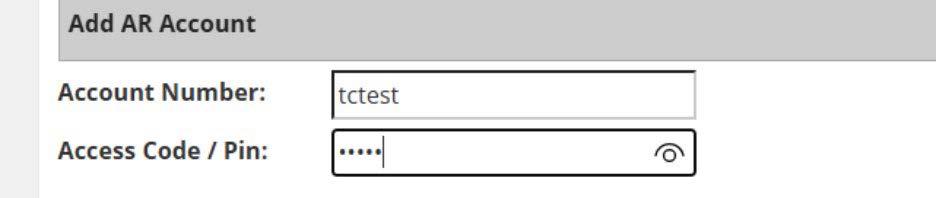
Enter a username.

Enter your email address and click Send Verification Email.

Enter the verification code received by email.

Choose a password that meets the following requirements:
- At least 8 characters
At least one special character (e.g., ! @ # $ % ^ & *)
Image
Enter and confirm your password, then click Save.

You will receive a confirmation email once your registration is complete.
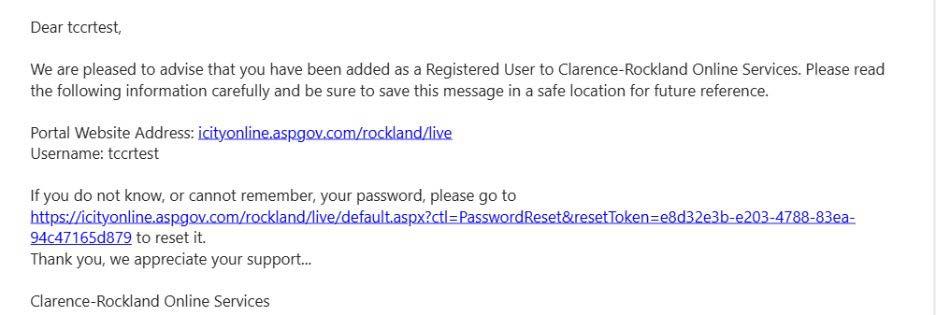
Before ordering a tax certificate, you must add funds to your account.
Select the Pay Online tab.
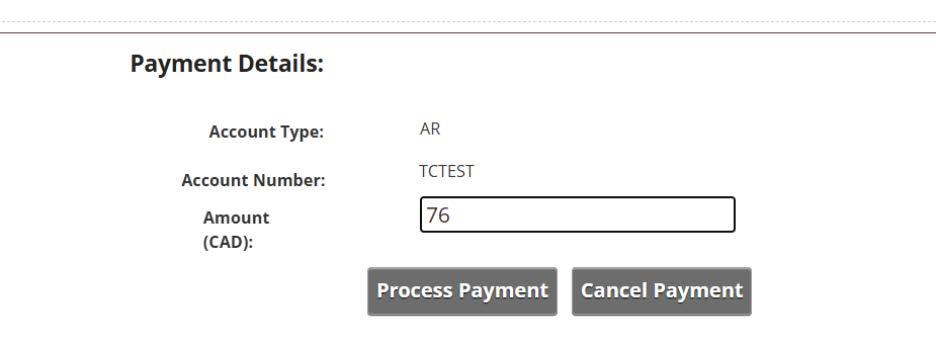
Then enter the amount you would like to add and click process payment
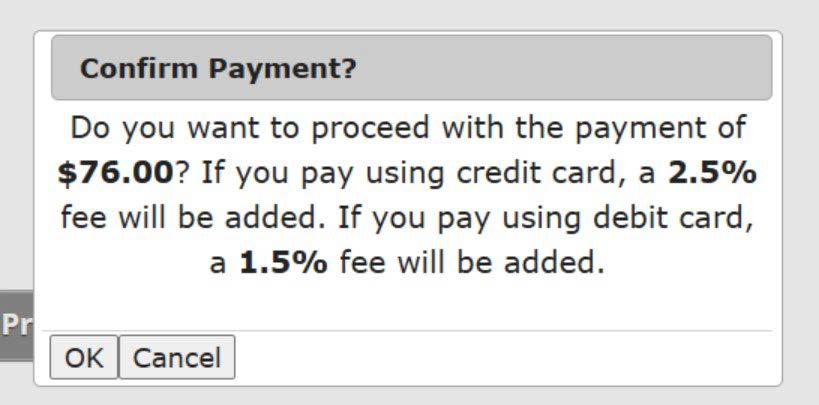
Confirm the payment when prompted.
Please note: A 2.5% processing fee applies to credit card payments, and a 1.5% processing fee applies to debit card payments.
Enter your billing information and complete the payment process.
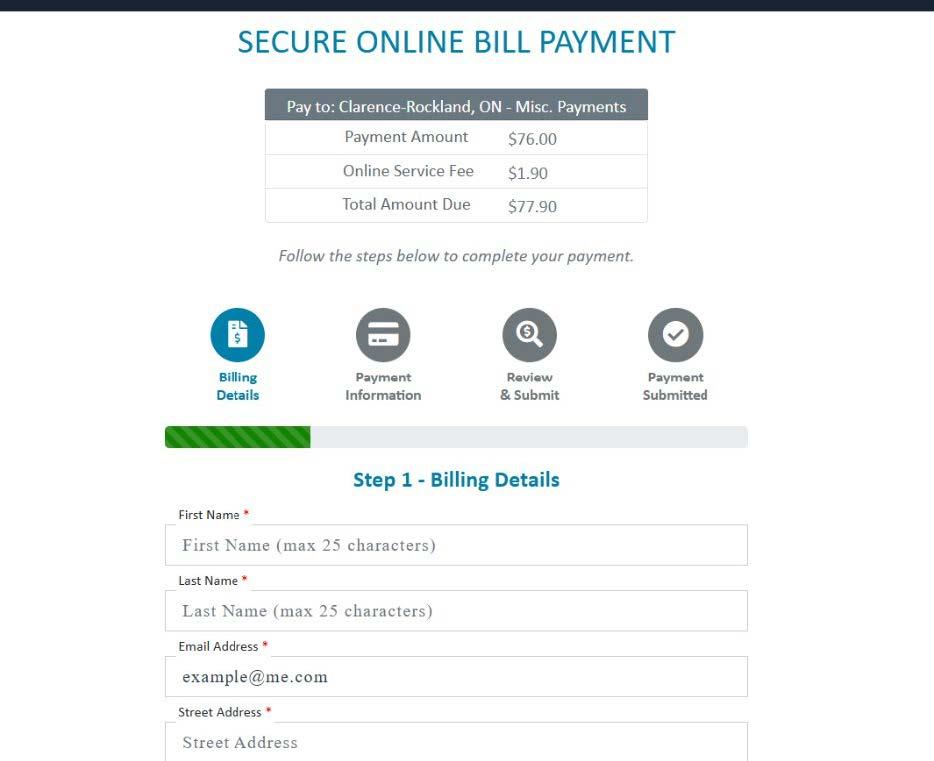
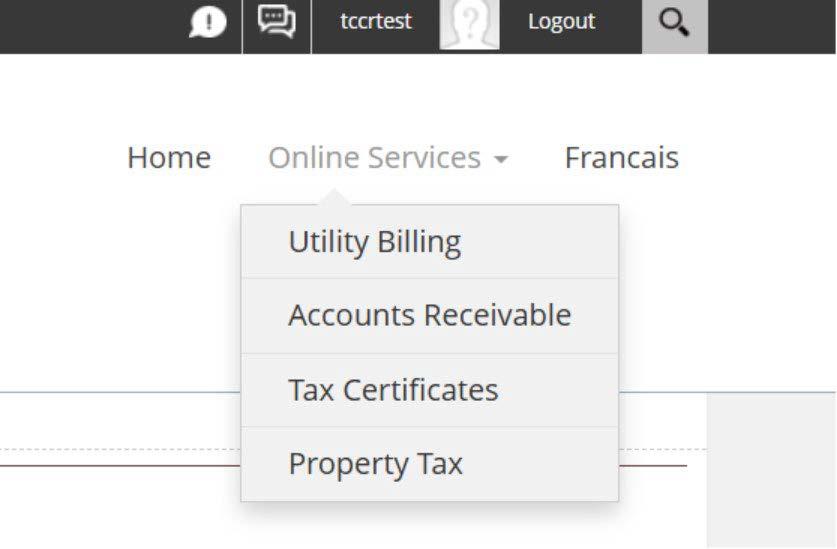
Once your account has been funded, select Tax Certificates from the Online Services menu.
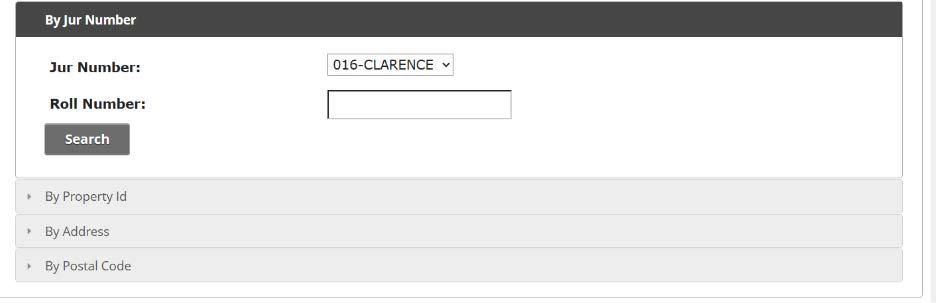
You can search for a property using any of the following:
- Roll Number
- Property ID
- Address
- Postal Code
Important: Do not enter a past or future date.
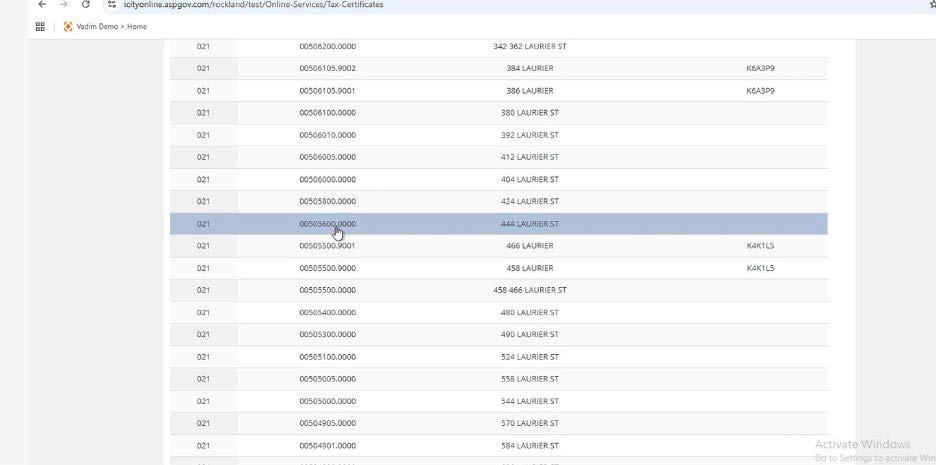
Review the search results and select the property for which you would like to obtain a tax certificate.
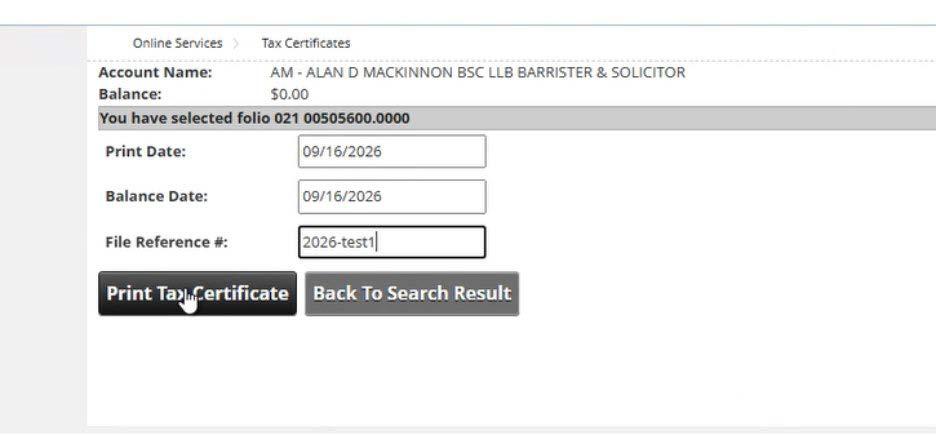
Enter the required tax certificate information, including:
- Date
- File Reference Number (if applicable)
Click Print Tax Certificate to generate your certificate.
This will produce the following output:
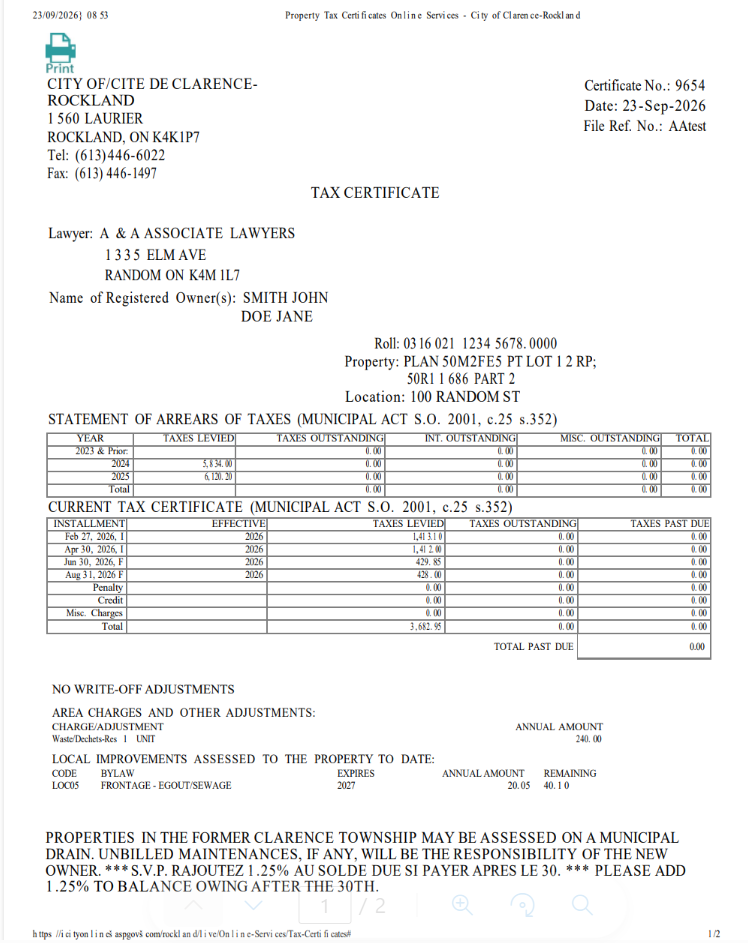
Be sure to print the tax certificate when it appears on your screen. Once you exit the screen, the certificate is no longer accessible, and failing to print it will result in an additional $76 fee.
Pressing the ESC key exits the screen completely but also means you can no longer access the tax certificate.
Make sure to click the print icon to save the output.
All transactions can be found under the transactions tab: